
Make a bootable USB from your Android phone, with no PC
How to create a bootable USB drive using only an Android phone and an OTG cable. Which method to pick, whether you need root, and what to expect when you boot.
If a computer won’t start and the only device you have is your phone, you are not stuck. An Android phone can write a bootable USB drive on its own. You need an OTG adapter, a USB drive, and about fifteen minutes.
You do not need root, and you do not need a second computer.
This page covers the whole problem, including the alternatives to our own app. There are two sensible methods, they suit different jobs, and picking the wrong one is the usual reason people give up.
What you need
- An Android phone with USB OTG support, meaning it can act as a USB host so a plugged-in drive shows up as storage. Most phones from the last several years can. Plugging a drive in and seeing it appear is the quickest test.
- A USB-OTG adapter for your phone’s port, or a USB-C flash drive that plugs in directly.
- A USB drive. 8 GB is enough for most Linux images, 16 GB or more for Windows.
- The ISO file you want to boot. If you don’t have one yet, BootForge’s catalog lists Linux distributions and rescue tools with a link to each publisher’s official download.
Everything on the USB drive is erased in the process, so move anything you need off it first.
Which method should you use
The two methods differ in how the ISO gets onto the drive, and that difference decides what each one can and can’t do.
Writing one image directly. The app copies the ISO onto the drive byte for byte, replacing whatever was there. One drive holds one operating system. This is the simplest route and it works well for Linux.
Setting up a Ventoy drive. The app installs a small bootloader once, and the rest of the drive stays ordinary storage. Adding an operating system afterwards is just copying its ISO file onto the drive, and a menu at boot lets you pick between them. One drive can hold several systems.
Pick by what you’re trying to do:
| Your situation | Use |
|---|---|
| One Linux distribution or rescue tool, nothing else | Direct write |
| Several systems on one drive | Ventoy |
| A Windows installer | Ventoy, or a dedicated installer drive |
| A rescue drive you’ll keep and update over time | Ventoy |
BootForge does all three of these from the same app, so you can change your mind later without switching tools.
The quick route: BootForge, step by step
This is the shortest path from a blank stick to a booting PC with a Ventoy drive, which is the most flexible of the three.
- Plug the drive into your phone with the OTG adapter. BootForge detects it and asks for permission to read it.
- Tap Prepare USB. You see the drive’s name and capacity and an erase warning, and nothing happens until you tick the confirmation. BootForge installs Ventoy and verifies every stage.
- Get an ISO. Pick one from the catalog and download it from the publisher’s page, or import one already on your phone. With Pro, the download happens inside the app and is checksum-verified for you.
- Send it to the drive from the Library. Live progress shows while it copies.
- Boot the PC with its boot-menu key, which BootForge looks up by manufacturer, offline.
To add another system later, repeat steps 3 and 4. The drive never needs preparing again.
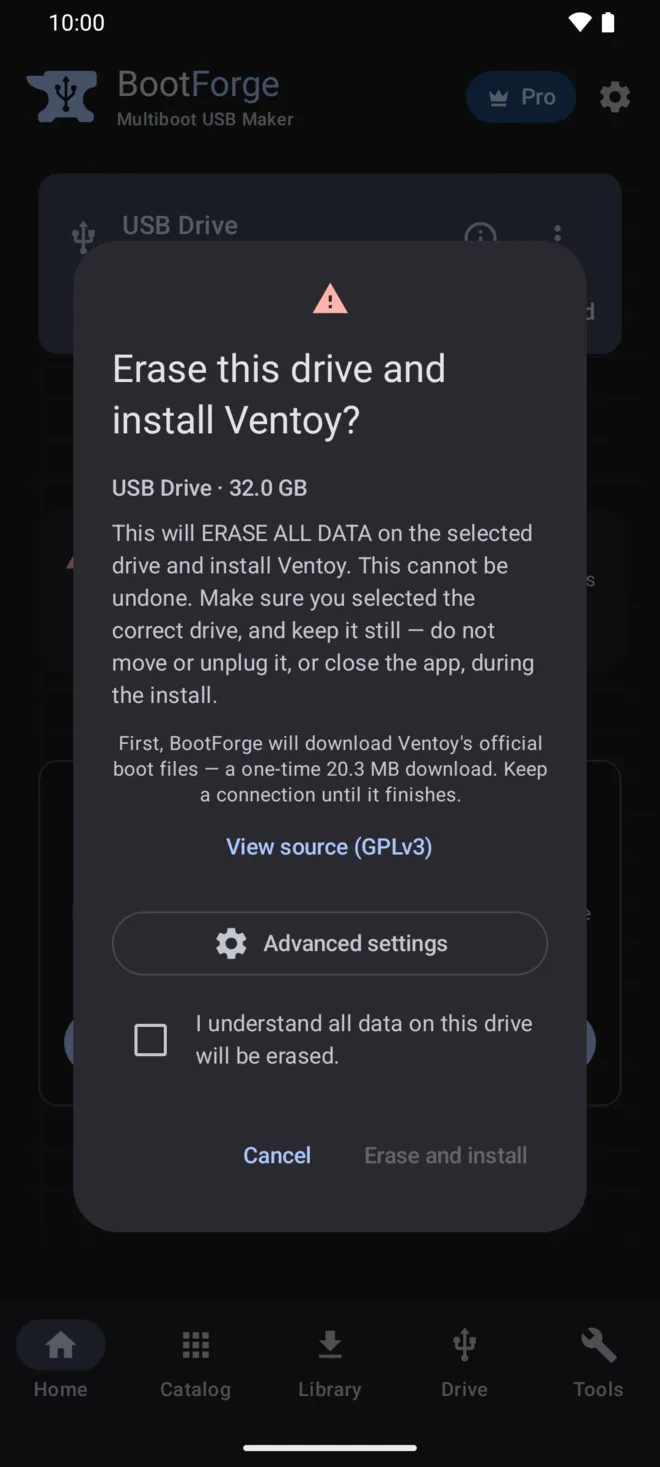
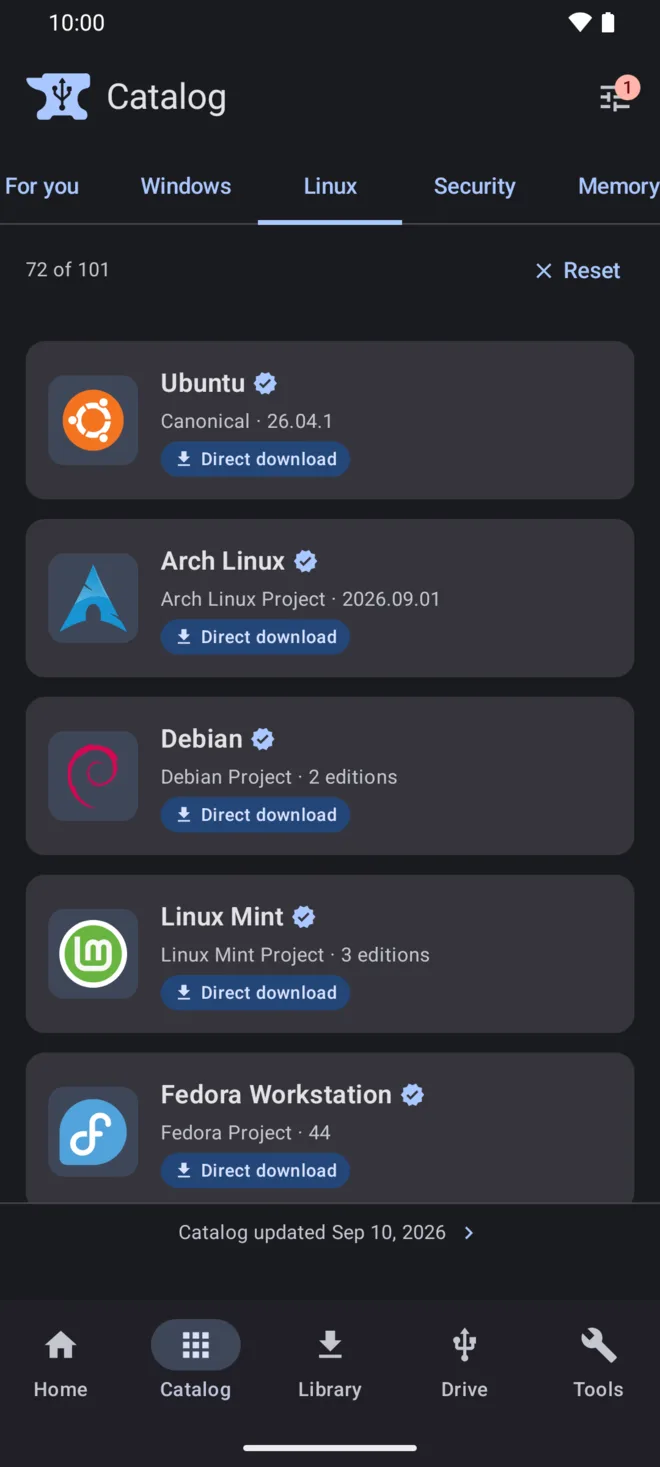
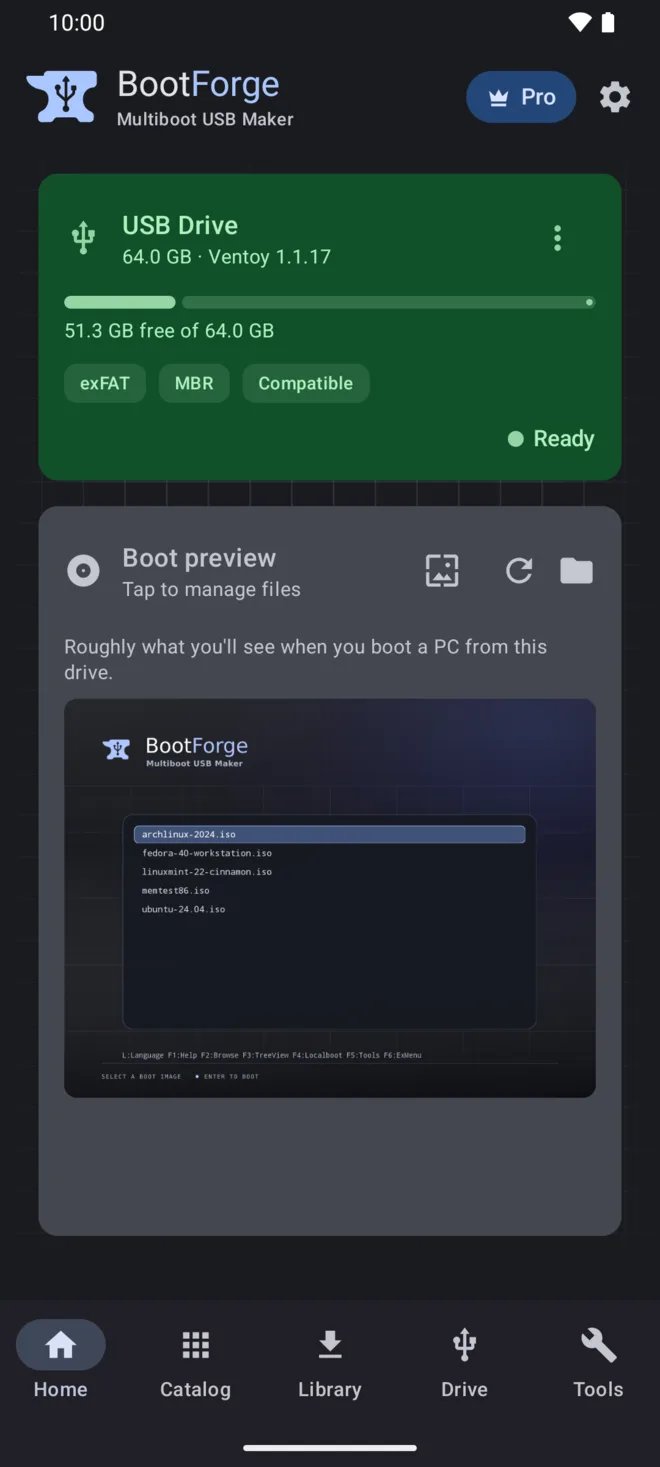
The full walkthrough, with every screen, is the Quick start.
Method 1: write a single Linux ISO
Two apps cover this. BootForge has a direct-write mode: pick an ISO from the Home screen or Tools, and it’s written byte for byte, then read back and verified, so a bad write shows up on the phone instead of at the boot menu. EtchDroid is the well known free and open-source option, and if open source matters to you, it is the one that is. Both are free and neither needs root.
Raw writing has one significant limit either way: Windows. EtchDroid’s FAQ explains that Windows ISOs “use the UDF filesystem, which most BIOSes don’t support on USB drives” and must be converted to a different filesystem first, which is not practical on a phone. Raw-writing a Windows ISO produces a stick that won’t boot, whichever app does the writing. BootForge won’t offer a raw write for a Windows ISO; it routes you to one of the two routes that do work. See Make a Windows 11 install USB from an Android phone.
Method 2: set up a Ventoy drive
Ventoy is an open-source project that turns a USB stick into a multiboot drive. Because it boots ISO files as files rather than raw-writing them, it accepts images the direct-write method can’t, including official Windows ISOs, and it lets one drive hold a Linux installer, a rescue tool and a Windows installer at the same time.
Ventoy’s own installer runs on Windows and Linux, not on a phone. BootForge sets the same drive up from Android: connect the drive over OTG, prepare it, then copy your ISO files across. Adding or removing a system later is copying or deleting a file, with no reformatting. See Preparing a drive and Copying images to the drive.
For the Windows case specifically there are two routes, a Ventoy drive or BootForge’s dedicated Windows installer mode. The installer mode also has Setup options: skip the Microsoft account sign-in, skip automatic BitLocker encryption, and pick the language. A walkthrough covers both routes: Make a Windows 11 install USB from an Android phone.
How the Android options compare
| BootForge | EtchDroid | DriveDroid | |
|---|---|---|---|
| Needs root | No | No | Yes |
| Write one Linux ISO | Yes, read back and verified | Yes | Phone acts as the drive |
| Ventoy multiboot drive | Yes | No | No |
| Windows installer USB | Yes | No | Limited |
| Catalog of images with official links | Yes | No | Yes |
| Back up and restore a whole drive | Yes | No | No |
| Open source | No | Yes | No |
| Price | Free; optional one-time Pro | Free | Free; paid version |
The short version: for one Linux stick, any of the OTG apps will do. For Windows, for several systems on one drive, or for a rescue stick you’ll keep updating, BootForge is the one built for it.
What about DriveDroid?
DriveDroid comes up in a lot of older guides. It does something different: rather than writing a USB drive, it makes the phone itself pretend to be one, so the PC boots from the phone directly.
It needs root access, and it needs your phone to support USB mass storage mode. Rooting is increasingly impractical on modern phones, and the app has not kept pace with recent Android versions. If you already have a rooted phone it may still work for you. If you don’t, the OTG methods above are the realistic path and neither requires root.
Booting the PC
This part is the same whichever method you used, and it’s where most of the real difficulty lives.
- Plug the drive into the target machine. Use a port on the machine itself, ideally a rear USB-A port on a desktop, and skip hubs and docks for booting.
- Power on and immediately start tapping the boot-menu key. It varies by manufacturer and is commonly F12, F9, Esc or F8. BootForge includes an offline lookup table, also published at Boot menu keys.
- Choose the USB drive from the menu that appears. On a Ventoy drive, pick your image from the Ventoy menu next.
If the drive doesn’t appear or doesn’t boot, the cause is nearly always the PC’s firmware rather than the drive. Troubleshooting boot problems covers Secure Boot, UEFI versus Legacy, and Fast Boot, which are the three usual culprits.
What BootForge costs
Making drives is free, and stays free: preparing Ventoy, writing a single image, Windows installer drives with their Setup options, backup and restore, persistence for Ubuntu-based images, checksum checks and the whole catalog. There are no ads, no accounts and no tracking.
BootForge Pro is a one-time purchase, not a subscription. It adds conveniences such as in-app image downloads, the boot-menu theme gallery and editing files on the drive. The full list is on BootForge Pro.
Common questions
Do I need root? No, not for either OTG method. Root is only relevant to the DriveDroid approach described above.
Will any phone work? It needs USB OTG support. Beyond that, the practical limits are power and adapters rather than the phone. Some drives draw more current than a phone’s port supplies comfortably, and cheap adapters are a frequent cause of a drive that won’t stay connected. If a drive keeps dropping out, change the adapter first, then try a powered hub.
Can I do this from an iPhone? Not today. BootForge is available for Android, and as a free download for Mac. If you have a Mac, Ventoy on macOS covers that route.
How long does it take? Preparing a drive is quick. Copying images is the slow part and scales with the file, so a 6 GB Windows ISO takes considerably longer than a 2 GB Linux one. A USB 3.x drive helps a lot.
Will it definitely boot? No tool can promise that. Whether a given machine boots a given image depends on the target PC’s firmware, its Secure Boot configuration, and the image’s own signing. This is true on a desktop too, and it isn’t specific to building the drive from a phone.
Before you start
Two things worth repeating, because they’re the mistakes that cost people real data:
- Preparing or writing a drive erases it completely. Confirm you’ve selected the drive you meant to.
- Download ISOs from the publisher’s own site. Third-party mirrors and file-sharing sites are a common route for tampered images, and you can’t tell by looking. Verifying a checksum after downloading is worth the minute it takes. See Verifying checksums.
Legal notes
BootForge is an independent application. It is not affiliated with or endorsed by the Ventoy project, and uses Ventoy under that project’s licence. EtchDroid and DriveDroid are separate projects with no connection to BootForge, mentioned here because they are the relevant alternatives.